
Don't Create That API Key: Set Up Application Default Credentials Instead
When you’re using Google Cloud’s Agent Platform (formerly Vertex AI), a leaked API key can be a terrifying (and expensive) disaster. Luckily, you don’t have to juggle API keys to access AI models on Google Cloud from your application code. Application Default Credentials are the safer and recommended alternative. The Agent Platform API Keys page in the console will tell you the same:
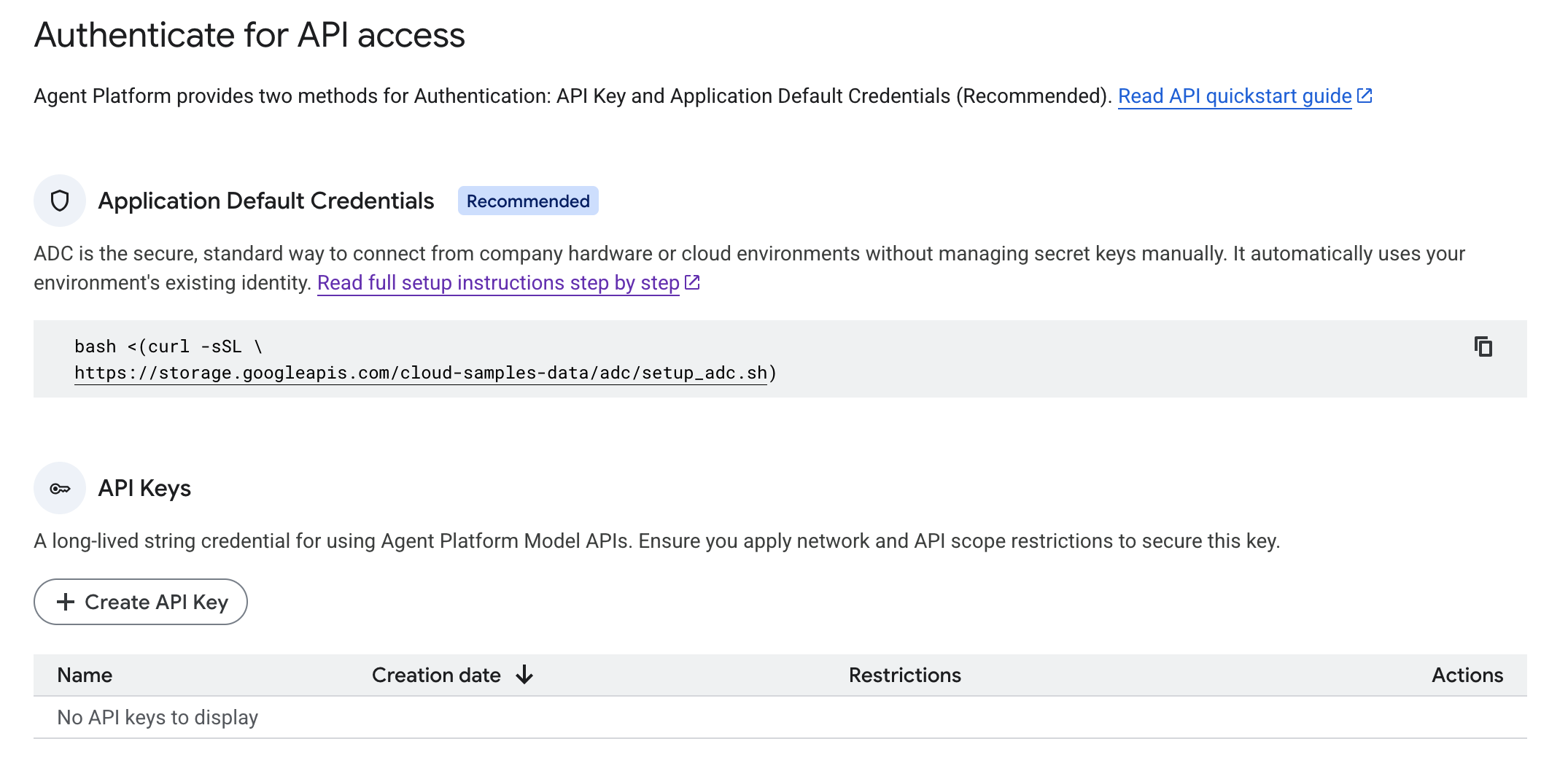
Conveniently, it provides a shell script that will set you up with application default credentials. The problem is that it only works on Mac and Linux. If you’re on Windows, or if for whatever reason this script fails on your machine, you might be tempted to just hit that “Create API Key” button and avoid application default credentials altogether.
But don’t.
Instead, follow these 5 quick steps to get your application default credentials set up fast. (If you want more details on application default credentials, here’s a video I put out on the topic that you should check out.)
Step 1: Verify you’ve got gcloud installed
You’re gonna need the Google Cloud CLI (gcloud) installed on your machine. Verify it’s installed by running:
gcloud version
If you already have it, move on to step 2. If not, you can find install instructions right here.
Step 2: Log-in and set application default credentials
The Google Cloud CLI manages 2 types of authentication. gcloud auth login authorizes gcloud commands to access Google Cloud with your credentials. gcloud auth application default login sets your user credentials as application default credentials.
Set them both in one swoop with the following:
gcloud auth login --update-adc
Step 3: Set your project id
We’ll reference your project ID a few times so set that to an environment variable:
export PROJECT_ID=<YOUR_PROJECT_ID>
The Google Cloud CLI references a project ID in 2 different ways. First, it’s defined in your current workspace config. Set that with:
gcloud config set project $PROJECT_ID
Now your project will be used in step 4, and any other gcloud commands you run.
Application default credentials don’t look at this value for a Google Cloud project. Instead it needs a quota project. Set a quota project with the following command:
gcloud auth application-default set-quota-project $PROJECT_ID
This project will be used when accessing Google Cloud APIs via Cloud Client Libraries used in your application code locally.
Step 4: Enable the API
Before you can use Agent Platform, your project needs to have the Agent Platform API enabled in it. Enable it with this command:
gcloud services enable aiplatform.googleapis.com
This makes it so that the service is accessible on your project. Without it, you’ll get a 403 error.
Step 5: Verify your access
To verify everything is set up correctly, we’ll hit the Agent Platform API with a web request that includes a temporary access token generated via your application default credentials.
First, retrieve the token and set it to an environment variable:
export TOKEN=`gcloud auth application-default print-access-token`
Next, set another environment variable to the contents of the request:
export REQUEST=$(cat \<\<EOF
{
  "contents": \[{
    "role": "user",
    "parts": \[{ "text": "Wave hello to the world" }\]
  }\]
}
EOF
)
And finally, put it all together in a single curl command:
curl \-s \-X POST \\
\-H "Authorization: Bearer $TOKEN" \\
\-H "Content-Type: application/json" \\
"https://aiplatform.googleapis.com/v1/projects/$PROJECT\_ID/locations/global/publishers/google/models/gemini-2.5-flash:generateContent" \\
\-d “$REQUEST”
The output should include a line that reads something like: ”text”: “Hello, world! 🌍👋”
Now you’re ready to ditch the API key and use application default credentials.
Happy trails!